For golf simulator installers and AV integrators
The installer leaves. The instructions don't.
Record the handoff on your phone. SimReplay turns it into a personal operating guide for that exact room: this launch monitor, this projector input, this software, in the order you set it up. The owner scans a QR by the screen and starts a round without calling you.
First room free. No credit card required. Works from a phone on site.
Sample · Northstar Home Technology
CallThe Cohen Golf Room
TrackMan iO · GSPro · BenQ LK936ST
What do you want to do?
Start a round
- Turn everything onVideo · 0:58 · 4 steps
- Start a course in GSProVideo · 0:44
Troubleshooting
- Screen says No SignalVideo · 0:31 · 3 steps
- No shot registeredVideo · 0:40
Shut down
- Shut down the roomVideo · 0:35 · 3 steps
Friends arrive Friday. The sim won't start.
You finished a room that cost more than a car and explained it well: power order, projector input, launch monitor light, which program, how to recalibrate. The owner nodded. It was a lot.
Ten days later the projector says No Signal, GSPro cannot find the launch monitor, and four guests are holding drinks. The owner has your cell. You are on another install.
Every room needs an operating guide. Not a manual for the product, a guide for the room.
Ten minutes at handoff
The guide is structured the way you already explain a room. Pick the equipment and the sections are there, with the usual gotchas pre-written. You record, the room explains itself.
- 1
Enter the room
Client, launch monitor, software, projector, PC, control system. Thirty seconds.
- 2
Record one clip per procedure
Turn everything on. Start a round. Pick the input. Reconnect the launch monitor. Shut down. Thirty to sixty seconds each, filmed on their gear.
- 3
Add the lines that save a call
“Close TPS fully before opening GSPro.” “Do not update before guests arrive.” Warnings and tips sit under each video.
- 4
Leave the QR by the screen
Print the card or the plaque file. The owner scans it, taps what they want to do, and watches you do it in their room.
← Start a roundSample
Start a round
Turn everything on
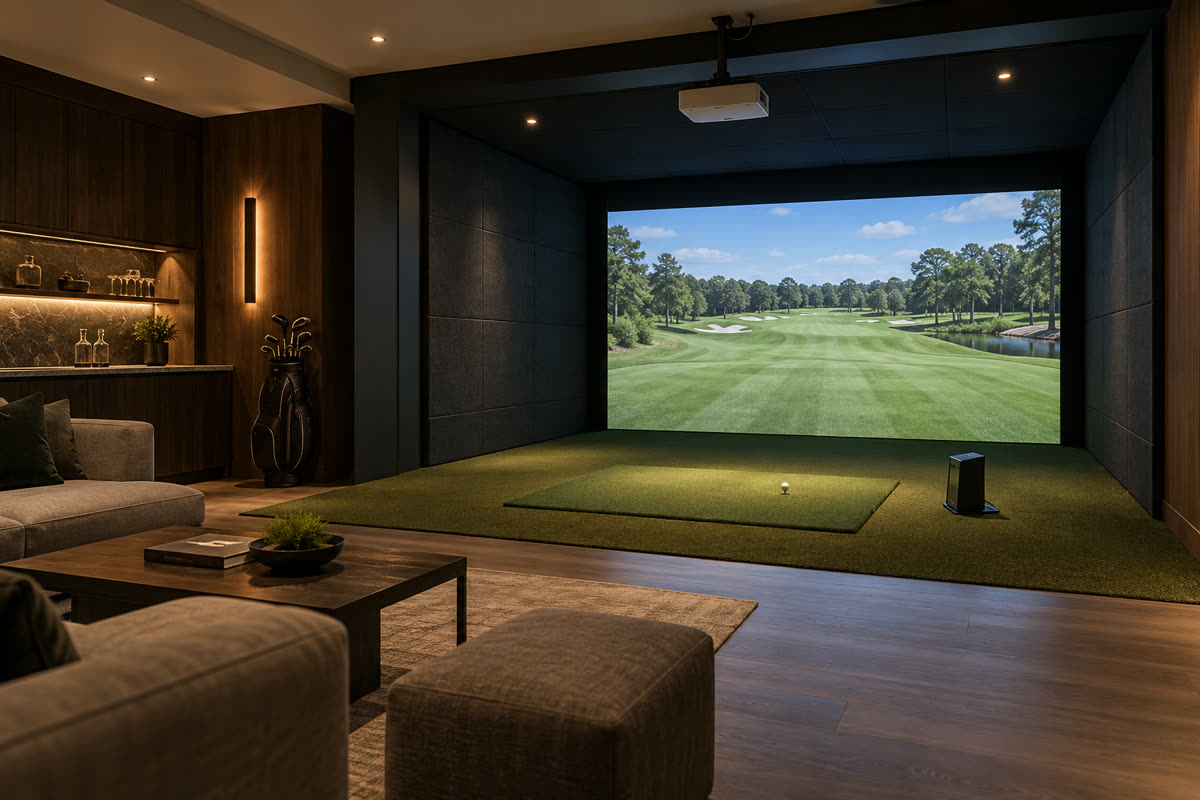 0:58
0:58- 1Press GOLF on the keypad by the door. Lights dim, projector starts warming up.
- 2Power the PC. Wait for the desktop before opening anything.
- 3Check the TrackMan light is solid white, not blinking.
- 4Open GSPro from the desktop shortcut.
- If the screen says No Signal, the projector is on the wrong input. See Projector → Pick the right input.
What the owner sees
Their room. Your voice. The right order.
The guide opens on what they want to do, not on a product manual. Tap Start a round, watch you power the room in the order that works, read the four steps below the video. Troubleshooting is one section down, with the three fixes for No Signal.
Open the sample room guideWhy hand it over with the keys
Somewhere to look before they call you
The calls that come after a golf room are the same eight: won't start, won't connect, no signal, frozen software. Each one is now a 30-second clip on the owner's phone.
A premium handoff for a premium room
A branded guide for their room, not a printed sheet taped to the rack. It reads like the rest of what you delivered.
Re-record one section, not the whole thing
Software updates, a new projector, a changed scene name. Fix the one clip; the rest stays.
Include it, or offer it as a premium handoff
Use it as part of your standard handoff, or offer it as a premium upgrade. Either way, it carries your name and your support line.
Per room, or a monthly plan
Your first room is free, no credit card required. Then $59 once per room, or Studio when you are completing three or more rooms a month.
First room
Free
Free. No credit card required. Hand it over on your next install and watch what the owner opens.
- 1 room guide
- Unlimited clips
- QR plaque file
- Per-section view counts
- No credit card required
Per room
$59 per room, one time
$59 once. No subscription required.
- One-time payment per room
- Guide stays available under the lifetime-guide policy
- Your company and support line on every guide
- Equipment list per room
Studio
$149 / month
Best for teams completing three or more rooms a month.
- Up to 6 new rooms per month
- $29 per additional room
- Multiple technicians
- Company branding
- All existing published rooms remain available
Published guides remain available after cancellation, subject to our Terms.
Studio includes 6 new rooms a month, then $29 per additional room. Published room guides remain available after cancellation, subject to our Terms.
Prices in USD. Terms of Service.
Questions, answered
- I already do a walkthrough.
- You do, once. SimReplay records that same walkthrough so the owner can replay the exact step for their projector input or their GSPro connector at 9 pm on a Saturday. Nothing extra to write.
- My clients have Control4 or Savant. It's one button.
- Then record the one button and the two things that still go wrong: the launch monitor app not connected, a Windows update. Guides for controlled rooms are shorter, not unnecessary.
- Manufacturers already have videos.
- Generic to the product, not to the room. None of them cover your splitter, your keypad scene names or the order this particular setup needs.
- Will owners actually use a QR code?
- A QR by the screen is the same habit as the printed step sheet taped to a commercial bay, with video instead of text. Your dashboard shows per-section opens, so you will know.
- How long does it take on site?
- Eight to twelve short clips, ten to fifteen minutes, while the owner is standing next to you. You can re-record one section later without touching the rest.
- Is this a support subscription for my client?
- No. It is your handoff deliverable. Include it in the installation or offer it as a premium handoff. It pairs with, not replaces, a remote support plan.
- What happens if I cancel?
- Cancelling stops you from creating or editing new guides. Guides you already published remain accessible unless you delete or revoke them, or the service itself is discontinued.
- Videos of a client's home. Privacy?
- Each room guide sits behind a private, unguessable link with your branding. No public listing. Turn the link off or delete the room and every clip at any time.
- What if the software updates and the guide is wrong?
- Re-record that one section in a minute. Everything else stays as it was.
Give every golf room its own operating guide.
Try it free on your next install.
Try it free on your next install